Websites
Build a Free Website in 5 Minutes: Launch with Gemini + Google Sites, No Coding Required
Build and publish a free website with Gemini and Google Sites, without coding. Learn when this is enough and when your business needs a fuller website.
Building your own website today does not necessarily require HTML, CSS, or even coding knowledge.
If all you need is a Personal Profile, Freelancer Portfolio, Digital Name Card, or a simple company introduction link you can send over WhatsApp, free tools can already help you create a real public website that other people can open and view.
In this guide, we will use two tools:
Gemini + Google Sites.
Gemini Canvas will generate and edit the webpage code, while Google Sites will put the content online.
Once you are familiar with both tools, you can create a basic version in just a few minutes. If this is your first time using them, allowing 15–30 minutes is more realistic, as you will still need time to sign in, check the content, choose images, adjust the layout, and configure public access.
When you are done, you will have a URL you can share publicly.
But one thing should be clear from the start: this method gives you a simple, shareable website. It does not automatically give you a complete Business Website structure.
If all you need is an Online Name Card, this approach may already be enough. If you want your website to support SEO, advertising, Lead Generation, or long-term Content Marketing, the second half of this article explains the difference.
What do you need before you start?
You will need:
- A Google Account that can access Gemini Canvas and Google Sites;
- Your name or brand name;
- A short introduction;
- Information about your services, experience, or portfolio;
- Email, WhatsApp, or another contact method;
- A Logo and photos, if needed.
Gemini Canvas features and usage limits may vary depending on your account, region, age, or plan. Company and school accounts may also be restricted by administrator settings.
Also, do not include passwords, API Keys, private client information, or other sensitive data in your Prompt.
Step 1: Ask Gemini to create your first website draft
Open Gemini, start a new Conversation, and select Canvas.
Instead of simply saying:
Build me a website.
It is better to explain the purpose, audience, content, style, and technical constraints in one go. You can Copy the Prompt below and replace the bracketed information with your own details:
Build me a clean, professional, Responsive Single Page personal website.
The purpose of the website is to introduce me / my services, primarily for users in Hong Kong.
Please use Traditional Chinese with a natural, professional tone, and set the HTML language to
zh-HK.The website should include:
- Hero Section: Name / Brand Name + one-line introduction
- About: Short personal introduction
- Services: List 3 services
- Experience / Portfolio: Briefly introduce experience or selected work
- Contact: Email and WhatsApp CTA
Design style: Minimal, Clean, Modern, with generous whitespace and a Mobile First approach.
Please output one complete, self-contained HTML file.
Put CSS inside
<style>; if JavaScript is needed, place it inside<script>.Do not use React, Vue, npm, external Frameworks, or any package that requires separate installation.
Do not add forms that require a Backend to work. Use Email and WhatsApp Links for contact buttons.
All content must be suitable for pasting directly into Google Sites Embed Code.
Make sure the text is clear, colour contrast is sufficient, buttons are easy to tap, and the mobile layout does not overflow horizontally.
Then add your own information.
For example:
My name is David Chan. I am a Freelance Photographer in Hong Kong, mainly shooting for restaurants, products, and Corporate Events. I want the overall look to feel clean and mature, using black and white as the main colours. Use “Check Shooting Availability” as the WhatsApp button text.
The more specific your information is, the closer Gemini’s first version will usually be to what you actually need.
Step 2: If you do not like it, just ask Gemini to change it
The most convenient part of using AI to build a website is not that the first version will be perfect. It is that you can simply describe the changes you want in normal language.
For example:
The website feels too generic. Make it more mature and Premium, but do not use gold.
The Hero is too tall. Reduce its height by around 20%, and make sure the contact button is visible in the first screen on mobile.
Change Services into three Cards. Show three Cards in one row on Desktop, and one per row on Mobile.
I am a lawyer. The current Design feels too much like a Creative Agency. Please change it to a more restrained and trustworthy Professional Service Style.
Instead of simply saying “make it nicer,” explain which section you want to change, what result you want, and what you do not want.
You do not need to know what padding, grid, or flexbox mean. You only need to explain the result you want to see.
Once the revisions are complete, do a basic check:
- Are your name, brand, phone number, and Email correct?
- Are the WhatsApp, Email, and other Links set correctly?
- Is there any Lorem Ipsum, sample imagery, or Placeholder content left?
- Does the website look clear in both Desktop and Mobile Preview?
- Has the AI added any experience, clients, or achievements you never provided?
AI-generated Code can speed up production, but you still need to verify the content and functionality yourself.
Once everything is checked, click Code in the top-right corner of Canvas, then Copy the complete HTML and get ready to paste it into Google Sites.
Step 3: Put the Code into Google Sites
Open Google Sites and create a Blank Site.
From the menu on the right, choose:
Insert → Embed → Embed Code
Paste in the complete HTML generated by Gemini, then click:
Next → Insert
Google’s official documentation confirms that Embed Code can include HTML, CSS, and JavaScript. CSS should be placed inside <style>, while JavaScript should be placed inside <script>.
If the display area is too short, drag the Embed area down to make it taller. You can also use Full Page Embed to dedicate the entire Page to the embedded content.
However, there is one important point to understand:
Google Sites displays the Code as embedded content. It does not convert every element into native Google Sites components.
That means if you later want to make major layout changes, the most reliable approach is usually to go back to Gemini or edit the Code directly, then paste the updated version into Google Sites again.
Step 4: Preview, Publish, then test in Incognito Mode
Before you Publish the site, use Google Sites Preview to check the Desktop, Tablet, and Mobile versions.
At a minimum, check:
- Whether any text is too small or being cut off;
- Whether the buttons can be clicked or tapped;
- Whether WhatsApp, Email, and external Links are correct;
- Whether images load properly;
- Whether the Embed area is tall enough;
- Whether any section shifts or overflows horizontally.
Once everything looks correct, click:
Publish
Google Sites will ask you to set a Web Address, for example:
sites.google.com/view/davidchan
Then set the Published Site so it can be viewed publicly.
After publishing, it is a good idea to open the URL in an Incognito window where you are not signed in to your Google Account. This confirms that other people can actually view the site, rather than only you having access.
Done.
You now have a URL you can add to your Instagram Bio, LinkedIn, Email Signature, WhatsApp, or even print on a Name Card.
See the result: a Gemini + Google Sites sample
We followed the same workflow—generating the layout in Gemini Canvas and publishing it through a Google Sites Embed—to create this public sample. You can review the screenshot or open the live site:
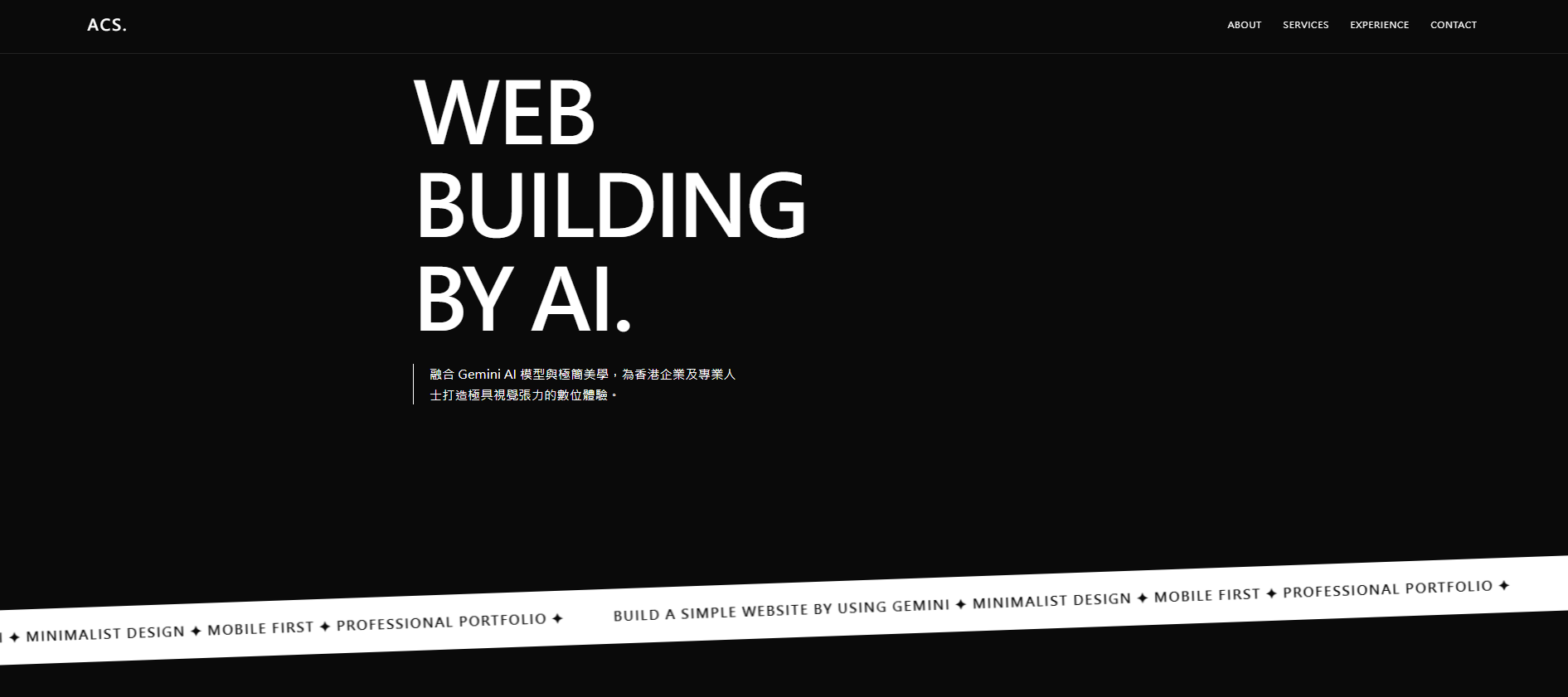
Open the AI Concept Studio Google Sites sample
The copy and contact details in this sample are placeholders for demonstration purposes and should not be treated as official AI Concept Studio company information.
Do you still need someone to build a proper website for you?
If your first reaction after finishing is:
“Isn’t this already enough?”
The answer may genuinely be:
Yes. Use it for now.
If your website is mainly for the following purposes, the free option is completely reasonable:
- Personal Profile;
- Freelancer Introduction;
- Portfolio;
- Digital Name Card;
- CV / Resume Website;
- One-off Event Page;
- Project Introduction;
- A company introduction page that you mainly send directly to clients yourself.
There is no need to spend tens of thousands of dollars on a system you do not actually need just because “a company should have a website.”
Google Sites also supports Custom Domains. If you buy your own Domain later and your account and setup meet the requirements, you can connect that custom address to Google Sites. The Domain itself still needs to be owned and configured separately.
There is nothing inherently wrong with the tool.
The real question is:
What job do you want your website to do?
Having a website and having a website that helps your business are two different things
You can separate the two with one question:
| How do you expect visitors to reach your website? | A more suitable starting point |
|---|---|
| “I will send people the Link myself.” | Gemini + Google Sites may already be enough |
| “Even if I do not send the Link, people should still be able to find me, understand what I do, and contact me.” | You should start planning a proper Business Website |
Once a website needs to support Organic Search, Google Ads, Meta Ads, Content Marketing, or long-term Lead Generation, the question is no longer just “does the Website look good?”
You need to think about:
- How the website structure should be organised;
- What Search Intent each Page should target;
- How Google understands the content of each Page;
- Where visitors should go after entering through a Landing Page;
- Which CTA matters most;
- How Campaign Traffic and Conversion should be measured;
- Whether the structure can support future Service Pages, Case Studies, Editorial content, or bilingual versions.
These are the real jobs a Business Website needs to handle.
Can Google Sites do SEO?
This is where people often become too absolute.
Google Sites is not “incapable of SEO.” Public websites can appear in search engines. Google Sites even provides an option that lets site owners request that Public Search Engines do not display the site. However, Google also notes that this is only a Request and does not guarantee that search engines will follow it.
In other words:
“Google can Index it” and “the website is built for SEO” are two different things.
Google Search Central’s SEO Starter Guide describes SEO as helping search engines understand your content while also helping users discover your site through search and decide whether they should visit it.
Page Titles, body content, Links, Images, website structure, crawlability, and content quality all affect how search engines understand a website. SEO is not completed by simply adding a few Keywords.
This method has another important limitation: the HTML generated by Gemini is placed into Google Sites as an Embed rather than becoming the page’s top-level native HTML structure.
Google Search has previously explained that its systems generally try to associate content inside an iframe with the main page, but that association is not guaranteed.
So if Organic Search is expected to be a major source of business, we would not consider “having most of the site’s full content depend on an Embed” to be an ideal long-term SEO structure.
Not because the site can never Rank, but because there is little reason to start with an architecture that gives you less control and makes search signals harder to manage.
Can Google Sites be used for advertising?
Yes, it can receive Traffic from Google Ads or Meta Ads. The real question is not whether the Page can open, but how much measurement and optimisation you need.
Google Sites can connect to a Google Analytics Property ID to collect basic website data. If all you need is a view of how many people visited the site and how basic Traffic is performing, that can already be useful.
But once the website becomes a long-term Marketing Asset, you may gradually need:
- Landing Page Variants;
- Conversion Events;
- Tracking for different CTA behaviours;
- Forms and CRM workflows;
- Consent management;
- Automation and third-party Integrations;
- Different Page Experiences for different Campaigns.
At that point, the question becomes:
“Will this architecture limit what I want to test, measure, and improve next?”
AI makes it easier to build a website, but it does not make Website Strategy disappear
The biggest value of tools like Gemini is that they dramatically lower the barrier to production.
Visual layouts that once required HTML and CSS knowledge can now often be generated with a few clear Prompts. That is a good thing. Businesses do not need to spend large Budgets on repetitive production work that AI can already accelerate.
But solving “how to write the Code” does not mean AI automatically knows:
- Which audience is most valuable for you to attract;
- What they are likely to Search for;
- What the first message on your homepage should say;
- Which Service deserves its own Landing Page;
- Which content should stay and which should be removed;
- How the Conversion Flow should work;
- What business result the website is ultimately supposed to deliver.
That is Website Strategy.
When is a free Google Sites website enough?
If most of the following descriptions apply to you, starting with free tools is a sensible choice:
- You will mainly share the URL yourself;
- The content only covers one or a few simple topics;
- You do not currently rely on Organic Search;
- You do not need complex Tracking, CRM, or Automation;
- You are willing to update the Code and Embed yourself;
- Your current priority is simply to establish a basic online presence quickly.
When is it worth building a proper Business Website?
If you start needing the following capabilities, it is worth beginning with a more complete structure:
- Letting new people discover you through Search;
- Giving each service its own Landing Page;
- Supporting Google Ads or Meta Ads;
- Publishing Editorial content, Case Studies, or bilingual content over the long term;
- Measuring Enquiries, Conversions, and Campaign performance clearly;
- Connecting CRM systems, forms, Automation, or other tools;
- Having full control over Source Code, Domain, Tracking, and future expansion.
At AI Concept Studio, we do not start a website project by asking, “How many Pages do you want?”
We first organise the business goals, visitor questions, Content Structure, Search Intent, and the most important next step. Only then do we move into Design, Development, SEO foundations, and Tracking.
Because the real job of a website is not to prove that you “have a Website.”
It is to help people:
Find you, understand you, and know what to do next.
If all you need is an Online Name Card, following the tutorial above may already be enough.
If you are ready to use your website for SEO, advertising, brand presentation, or Lead Generation, take a look at ACS Website Strategy, Design & Development Services.
Our website services currently start from HK$3,700. The three-page package includes a Brand / Product page, About Us, and Privacy Policy & Terms, plus Website Strategy, Responsive Design and Development, Source Code delivery, a Custom Domain for the first year, SEO / GEO foundations, Search Console / GA4 connection, and three rounds of revisions. The actual Scope will be confirmed based on what the website needs to achieve.
If you are not sure whether you need a proper website yet, that is completely fine.
Start by telling us what you want the website to achieve. We will first assess whether free tools are already enough, then decide whether it is worth starting with a more complete structure.
Frequently Asked Questions (FAQ)
Can Gemini really help me build a website for free?
Gemini Canvas can help create and edit Apps and Code. Actual features, usage limits, and free availability may vary depending on your account, region, age, and plan. Check what is available in your account at the time you start.
Is Google Sites free?
If your Google Account can access Google Sites, you can create and Publish a website using a Google Sites URL without separately purchasing Hosting or a Domain. If you want to use a Custom Domain, you need to own the Domain and complete the required setup yourself.
Can I add my own HTML to Google Sites?
Yes. Google officially supports adding HTML, CSS, and JavaScript through Insert → Embed → Embed Code. You can also use Full Page Embed.
Will Google Sites automatically edit the content generated by Gemini?
No. Google Sites mainly displays the Embed Code you paste into it. If you want to change the content or layout, you will normally need to edit the Code first, then update the Embed.
Is Google Sites suitable for a company website?
It depends on the purpose. If you only need a simple company introduction, Portfolio, or a URL that you mainly share directly yourself, it can be a low-cost option. If the website needs long-term SEO, Content Marketing, advertising Tracking, a complex Conversion Flow, or highly customised functionality, you should plan the long-term architecture and level of control first.
Does using AI mean I no longer need a Web Designer or Developer?
For simple pages, maybe not. AI can already handle a large amount of Layout, Code, and initial production work. But a Business Website still involves information architecture, Brand Experience, Search Intent, Content, Tracking, Conversion, Accessibility, and long-term maintenance.
The real question is not “Can AI write the Code?” but what business job the website ultimately needs to accomplish.
Sources & Further Reading
- Google Gemini Help — Create docs, apps & more with Canvas
- Google Sites Help — Add HTML, CSS or JavaScript code
- Google Sites Help — Publish and share your site
- Google Sites Help — Use a custom domain for your site
- Google Sites Help — Use Analytics with your site
- Google Search Central — SEO Starter Guide
- Google Search Central — iframe content and indexing
EVIDENCE LINKS
Sources and further reading
When an article uses current events or external information, the actual sources are listed here.
- 01Google Gemini Help — Create docs, apps & more with Canvas
- 02Google Sites Help — Add HTML, CSS or JavaScript code
- 03Google Sites Help — Publish and share your site
- 04Google Sites Help — Use a custom domain for your site
- 05Google Sites Help — Use Analytics with your site
- 06Google Search Central — SEO Starter Guide
- 07Google Search Central — iframe content and indexing